QuickBooks Bookkeeping for Amazon FBA & Shopify | Thelonex


QuickBooks Canada E-Commerce Setup with A2X
- Home
- QuickBooks Canada E-Commerce Setup with A2X
- April 29, 2026
- 8 min read
- No Comments
QuickBooks Canada E-Commerce Setup with A2X
Running an e-commerce store in Canada comes with a unique accounting challenge. You need to track Amazon Canada sales, apply GST/HST correctly, and keep your books clean. Without the right setup, this can eat up hours every week.
That is where QuickBooks Online and A2X come in together. A2X pulls your Amazon Canada sales data and sends clean, accurate summaries directly into QuickBooks. This post walks you through the complete setup, step by step.
By the end, you will know how to connect both platforms, map your accounts correctly, and stay on top of GST/HST without manual data entry.
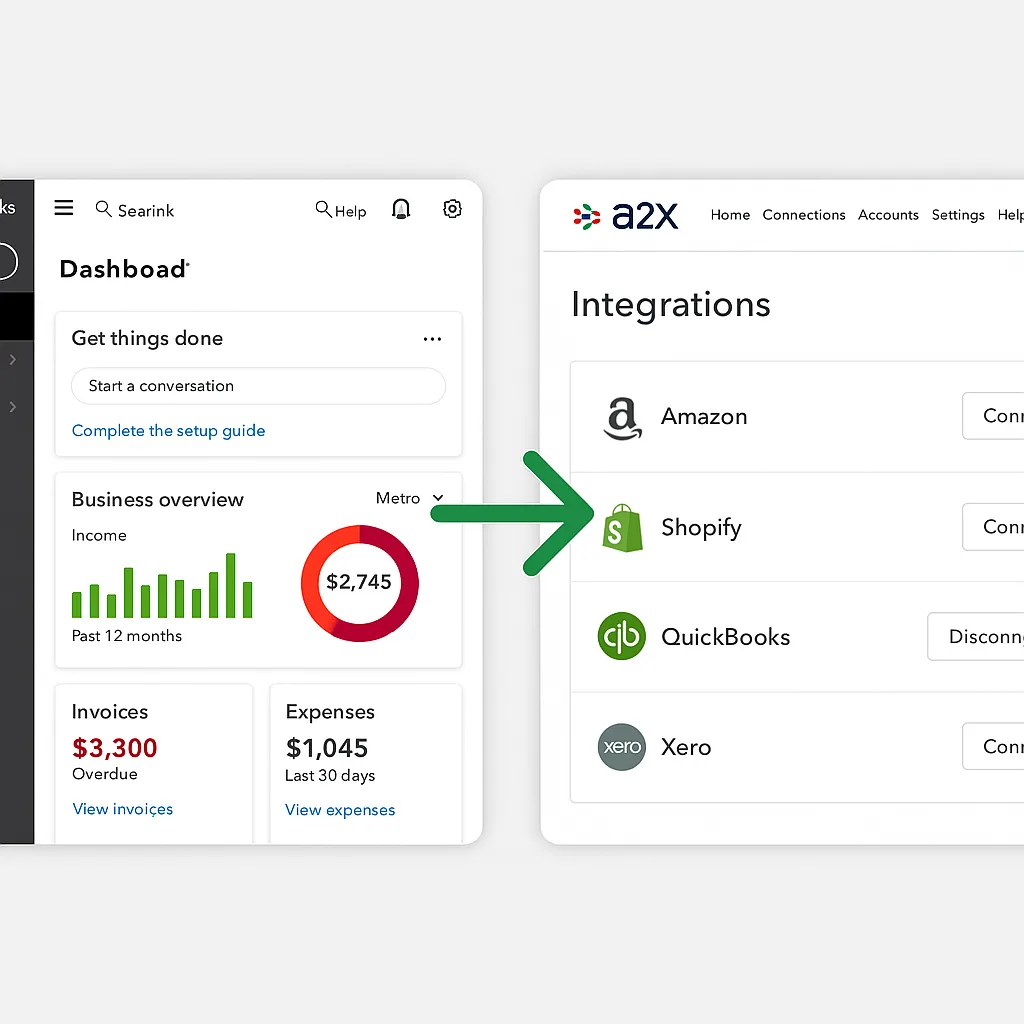
What Is QuickBooks Online with A2X?
QuickBooks Online is a cloud-based accounting platform. It helps small business owners manage income, expenses, taxes, and financial reports. For Canadian sellers, it includes built-in GST/HST tax tracking and CRA-ready reporting.
A2X is a third-party integration tool. It connects your Amazon Canada seller account to QuickBooks and automates the flow of financial data. Instead of manually entering every transaction, A2X creates summarized journal entries that match your Amazon settlements.
Together, these two tools form the backbone of a solid QuickBooks Canada e-commerce accounting system.
Who Is This Setup For?
This guide is designed for:
- Amazon Canada sellers who need accurate bookkeeping
- New e-commerce business owners setting up accounting for the first time
- Self-employed Canadians managing their own GST/HST remittances
- Accountants and bookkeepers working with Canadian e-commerce clients
If you sell on Amazon.ca or plan to, this setup will save you significant time and reduce costly errors.
Why This Setup Matters for Canadian Sellers
Canada has specific tax rules. Depending on your province, you may collect GST, HST, or a combination. Amazon Canada may collect and remit some of this tax on your behalf, but your records still need to reflect every transaction accurately.
Without automation, reconciling your Amazon payouts with your QuickBooks books is time-consuming and prone to human error. A missed HST entry or a misclassified sale can cause real problems at tax time.
The Real Cost of Manual Entry
Many Canadian e-commerce sellers spend 5 to 10 hours per month reconciling their books manually. That is time you could spend growing your business. Manual entry also increases the risk of:
- Incorrect GST/HST remittance amounts
- Mismatched Amazon settlement figures
- Duplicate or missing transactions
- Audit risk from inconsistent records
A2X eliminates most of these risks by automating the reconciliation process between Amazon Canada and QuickBooks.
Benefits of Using A2X with QuickBooks
When you set up this integration correctly, you get:
- Automatic journal entries for every Amazon settlement
- Accurate GST/HST tracking by tax type and province
- Clean reconciliation with your QuickBooks bank feed
- Less time spent on bookkeeping every month
- Confidence in your financial reports at year-end
Step-by-Step Guide to Setting Up QuickBooks with A2X
Follow these steps in order. You do not need technical experience to complete this setup.
Step 1: Set Up Your QuickBooks Online Account
If you do not have a QuickBooks Online account yet, sign up at the QuickBooks Canada website. Choose a plan that includes sales tax tracking. The Simple Start or Essentials plan both work for most Amazon Canada sellers.
Once you are logged in, go to Settings and configure your business details. Make sure you enter your Canada Revenue Agency (CRA) business number and your GST/HST registration number if you are registered.
Important: Enable the sales tax feature inside QuickBooks. Go to Taxes in the left menu, then follow the prompts to set up your GST/HST rates. This step is critical before connecting A2X.
Step 2: Create Your Chart of Accounts
Your chart of accounts is the list of categories QuickBooks uses to record income and expenses. A2X will map your Amazon transactions to these categories.
Create accounts for:
- Amazon Canada Sales Revenue
- Amazon Fees (fulfillment, referral, storage)
- GST/HST Collected
- GST/HST Paid on Expenses
- Amazon Refunds and Returns
You can customize these categories later. Starting with a clear structure makes the A2X mapping process much easier.
Step 3: Create Your A2X Account and Connect Amazon
Go to the A2X website and sign up for an account. A2X offers a free trial, so you can test the setup before committing.
Once you are inside the A2X dashboard, click Connect Amazon. You will be redirected to your Amazon Seller Central account. Authorize A2X to access your sales data. This authorization is read-only, so A2X cannot make changes to your Amazon account.
A2X will begin pulling your settlement data. This may take a few minutes for the first sync.
Step 4: Connect A2X to QuickBooks Online
Still inside your A2X account, go to Accounting and select QuickBooks Online. Click Connect and log in with your QuickBooks credentials. Grant A2X permission to access your QuickBooks account.
A2X will now detect your chart of accounts. You will see a mapping screen where you can assign each Amazon transaction type to the correct QuickBooks account.
Step 5: Map Your Amazon Transactions to QuickBooks Accounts
This is the most important step. You need to tell A2X where each type of Amazon transaction should go in QuickBooks.
Set up mappings for:
- Product sales → Amazon Canada Sales Revenue
- Amazon fees → Amazon Fees expense account
- Refunds → Amazon Refunds account
- GST/HST collected → Tax payable account in QuickBooks
Take your time here. Incorrect mappings will create errors in your books that are hard to find later. If you are unsure, consult a bookkeeper familiar with QuickBooks Canada e-commerce setups.
Step 6: Review and Send Your First Settlement to QuickBooks
Once mapping is complete, go to the Settlements section in A2X. You will see a list of your recent Amazon Canada settlements. Click on the first one and review the summary. Check that the figures look correct.
When you are satisfied, click Send to QuickBooks. A2X will create a journal entry in your QuickBooks account that matches the settlement.
Go into QuickBooks and check the journal entry. It should appear in your chart of accounts and be ready to match against your bank feed when Amazon deposits your payout.
Step 7: Reconcile with Your Bank Feed
Amazon pays you by depositing money into your bank account. QuickBooks tracks these deposits through the bank feed.
In QuickBooks, go to Banking and find the Amazon deposit. Match it to the journal entry that A2X created. When both figures match, the transaction is reconciled.
You will repeat this step every time Amazon sends a settlement payout. Most Amazon Canada sellers receive payouts every two weeks.
Practical Tips for Better Results
Stay on Top of GST/HST Reporting
QuickBooks Online generates a GST/HST report you can use to complete your CRA filings. Check this report monthly, even if you file quarterly. Catching errors early is much easier than correcting months of data at once.
A2X captures the tax amounts from each settlement. Make sure your tax mappings in A2X match the accounts QuickBooks uses for tax reporting.
Common Mistakes to Avoid
- Skipping the chart of accounts setup before connecting A2X. This leads to unmapped transactions.
- Not enabling sales tax in QuickBooks before linking A2X. Tax data will not flow correctly.
- Ignoring Amazon fee categories. Mixing fees with revenue distorts your profit margins.
- Failing to reconcile after each settlement. Unmatched entries pile up and become hard to fix.
- Using the wrong GST/HST rate for your province. Double-check rates on the CRA website before you set them up.
Efficiency Tips
Set a recurring calendar reminder to review your QuickBooks books every two weeks. This aligns with Amazon Canada settlement cycles and keeps your records current.
Use QuickBooks tags or classes to separate Amazon Canada sales from other revenue streams. This makes reporting cleaner and helps when you scale to other platforms.
Consider connecting a dedicated business bank account to QuickBooks. This makes the bank feed cleaner and simplifies your monthly reconciliation.
Conclusion
Setting up QuickBooks Online with A2X for Amazon Canada does not have to be complicated. Once the integration is live, it runs in the background and keeps your books accurate without constant manual input.
You get clean settlement data, correct GST/HST tracking, and easy bank reconciliation every two weeks. That means fewer surprises at tax time and more time spent on your business.
For Canadian e-commerce sellers, this QuickBooks Canada e-commerce setup is one of the highest-leverage investments you can make in your financial management. The time you save every month compounds over the year into real hours and real money.
Start with the free trial options available on both platforms. Follow the steps in this guide, and you will have a working integration within an hour.
Founder & Virtual Accounting Advisor

Ashfaq helps e-commerce business owners turn messy numbers into clear, reliable financials. With over 15 years of experience, he specializes in bookkeeping for Amazon and Shopify sellers, ensuring accuracy, clarity, and confident decision-making.
Ready To Transform Your Financial Operations?
Ready to get your QuickBooks Canada e-commerce books in order? Thelonex helps Canadian sellers set up and manage their accounting from day one. Visit thelonex.com to book a free consultation with our bookkeeping team today.
Categories
Latest Posts
- August 2, 2026
Amazon Seller Connector by QuickBooks: Complete Guide
- July 21, 2026
How COGS Accounting Works for Canadian FBA Sellers
Tags
A2X
Accounting Method
Amazon FBA
Amazon Marketplace Connector
Amazon Seller Central
Amazon Seller Connector
Bookkeeping Tips
Canada Tax Registration
Canadian Bookkeeping
Canadian Sales Tax
Chart of Accounts
COGS
E-Commerce
E-Commerce Bookkeeping
Finance
Financial Statements
GST/HST
Inventory
Payout Reconciliation
Profit and Loss
QuickBooks Online
Sales Tax
Sales Tax Compliance
Shopify
TaxCloud