QuickBooks Bookkeeping for Amazon FBA & Shopify | Thelonex


TaxCloud for Amazon Sellers: Automate Tax Filing
- Home
- TaxCloud for Amazon Sellers: Automate Tax Filing
- June 4, 2026
- 12 min read
- No Comments

TaxCloud for Amazon Sellers: Automate Tax Filing
Sales tax is the part of running an Amazon FBA business that most sellers either ignore for too long or spend far too many hours managing manually. Neither approach works.
If you have nexus in multiple US states — and most FBA sellers do — you need to track thresholds, calculate rates, and file returns in each state on its own schedule. Doing this manually is not realistic once your business has any meaningful volume.
TaxCloud is a sales tax automation platform built specifically for this problem. This guide explains what TaxCloud does, why it matters for Amazon FBA sellers, how to set it up step by step, and how it connects to the rest of your accounting stack — including QuickBooks Online and A2X.
What Is TaxCloud for Amazon Sellers?
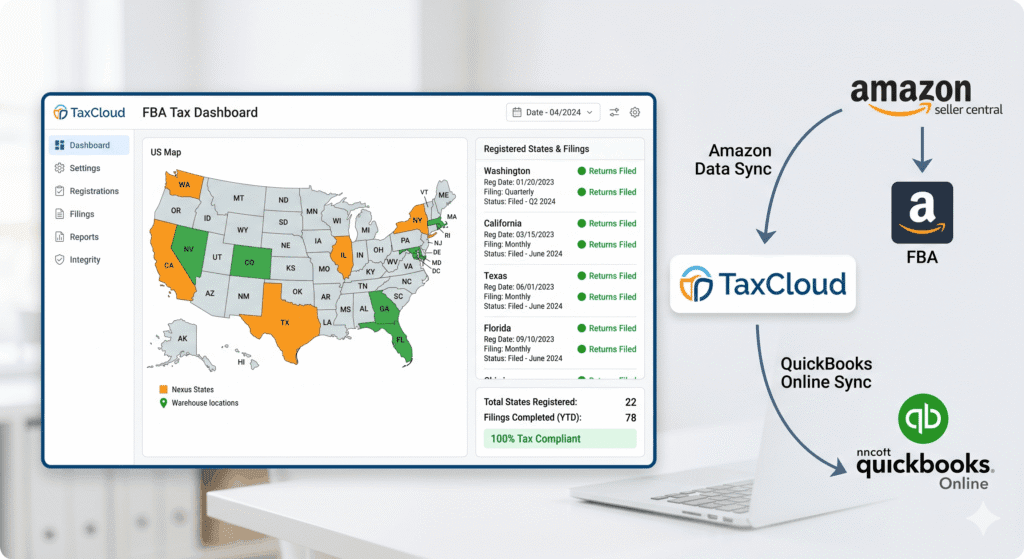
TaxCloud is a sales tax compliance platform that automates three core tasks: nexus monitoring, tax rate calculation, and return filing across all US states.It connects directly to your Amazon seller account and to your accounting software. Once connected, it pulls your transaction data, applies the correct tax rate for each customer location, tracks which states you have nexus in, and files your returns on the correct schedule.TaxCloud is one of the few sales tax tools that is a Certified Service Provider (CSP) for the Streamlined Sales Tax (SST) program. This means TaxCloud files are accepted by participating SST member states without additional review — and in many of those states, the filing is free for sellers.Who Is TaxCloud For?
TaxCloud is built for e-commerce sellers who sell across multiple US states. It is particularly well-suited for Amazon FBA sellers because:- FBA creates inventory nexus in states where Amazon stores your products — often without your direct knowledge
- Amazon’s settlement data includes the transaction-level detail TaxCloud needs to calculate tax correctly
- FBA sellers typically need to file returns in 5 to 20+ states simultaneously
Why TaxCloud Matters for Amazon FBA Sellers
Sales Tax Compliance Is Not Optional After Wayfair
Since the South Dakota v. Wayfair ruling in 2018, every US state with a sales tax can require out-of-state sellers to collect and remit once they cross an economic nexus threshold. Most thresholds sit at $100,000 in annual revenue or 200 transactions in that state.For FBA sellers, nexus often exists in states before those thresholds are crossed — because physical inventory stored in an Amazon fulfillment center creates nexus regardless of revenue. That means registration and filing obligations can apply from your first sale in many states.Manual Compliance Does Not Scale
Filing sales tax manually in 10 states means tracking 10 different filing schedules, 10 different rate structures, and 10 different due dates — every month or quarter. Missing a single deadline triggers penalties. Getting a rate calculation wrong triggers back-tax notices.A mid-volume FBA seller can easily spend 4 to 8 hours per month on manual sales tax work. TaxCloud reduces that to under 30 minutes — or eliminates active involvement entirely if you enable auto-filing.TaxCloud Integrates With Your Existing Stack
TaxCloud connects directly with QuickBooks Online and with Amazon via the Marketplace Tax Collection data in your settlement reports. If you use A2X for bookkeeping, your settlement data flows into QuickBooks in clean line items — and TaxCloud reads from the same transaction source.This means your sales figures, your tax collected, and your QuickBooks records all stay in sync. No duplicate data entry. No reconciliation gaps.See how A2X and TaxCloud work together as part of a complete system: Amazon Seller Accounting: The Complete Guide for US and CanadaStep-by-Step: How to Set Up TaxCloud for Amazon Sellers
This setup process assumes you already have an Amazon Seller Central account and QuickBooks Online. If you have not yet set up QuickBooks, complete that step first.Step 1: Create Your TaxCloud Account
Go to taxcloud.com and create a free account. During sign-up, enter your business information including your legal name, business address, and EIN (Employer Identification Number). TaxCloud will use this information when filing returns on your behalf.Select e-commerce as your business type and Amazon as your primary sales channel. TaxCloud will tailor your account settings accordingly.Step 2: Connect TaxCloud to Amazon Seller Central
Inside your TaxCloud dashboard, navigate to Integrations and select Amazon. You will be prompted to authorize TaxCloud to access your Seller Central account via Amazon’s Selling Partner API (SP-API).Once connected, TaxCloud will pull your historical transaction data. Depending on how long you have been selling, this initial import may take 15 to 30 minutes. TaxCloud uses this data to calculate your nexus exposure and identify which states you are already over the threshold in.Step 3: Review Your Nexus Analysis
After the data import, TaxCloud generates a nexus report. This shows every state where you currently have nexus — both inventory nexus from FBA fulfillment center placement and economic nexus from sales activity.Review this list carefully. For each state on the list, you need to either be registered already or complete registration before TaxCloud can file on your behalf.| Important: TaxCloud calculates and files — but you must register.TaxCloud does not register you in new states. Registration must be completed through each state’s department of revenue website before TaxCloud can file returns there. This is a one-time step per state. |
Step 4: Register in Each Nexus State
For each state in your nexus report, visit that state’s department of revenue website and apply for a sales tax permit. Most applications are completed online and take 10 to 30 minutes per state. You will receive a permit number within a few business days in most states.Once you have your permit number, enter it in TaxCloud under the relevant state’s settings. This links your registration to your TaxCloud account and enables TaxCloud to file on your behalf in that state.If you have a long list of states, consider working through them in batches or hiring a bookkeeper or accountant to handle the registration process. The Thelonex sales tax service covers registration as part of the setup.For a full breakdown of how to handle back-tax exposure before registering, read: Amazon FBA Sales Tax Nexus: A State-by-State Guide for US Sellers — particularly the section on Voluntary Disclosure Agreements.Step 5: Configure Product Tax Codes
Not every product is taxable in every state. TaxCloud uses product tax codes — called Taxability Information Codes (TICs) — to determine whether each product is taxable in each state.In your TaxCloud account, assign a TIC to each of your product categories. Common categories include:- General merchandise (most FBA products) — taxable in nearly all states
- Food and grocery items — often exempt or reduced rate
- Clothing — exempt in some states (e.g., New York, Pennsylvania)
- Dietary supplements — varies widely by state
- Electronics — taxable in all states
Step 6: Set Your Filing Schedule and Enable Auto-Filing
Each state has its own filing frequency based on your sales volume in that state: monthly, quarterly, or annually. TaxCloud reads your transaction volume and recommends the correct schedule for each state.Review the recommended schedules and confirm them in your account. Then enable auto-filing. With auto-filing on, TaxCloud will prepare each return, submit it to the state, and remit the tax automatically on the due date.You will receive a confirmation for each filed return. You can also review filed returns at any time from your TaxCloud dashboard.| State | Filing Frequency | When It Applies | Due Date |
| California | Monthly | > $1,000/mo tax due | 20th of following month |
| Texas | Monthly | > $1,500/mo tax due | 20th of following month |
| New York | Monthly | > $3,000/quarter | 20th of following month |
| Florida | Monthly | > $1,000/mo tax due | 20th of following month |
| Ohio | Monthly | > $1,200/quarter | 23rd of following month |
| Illinois | Monthly | > $200/mo tax due | 20th of following month |
| Pennsylvania | Monthly | Most sellers | 20th of following month |
| Most states | Quarterly | Lower revenue threshold | Last day of month after quarter |
| Some states | Annually | Very low revenue | January 31 for prior year |
Step 7: Sync TaxCloud Data With QuickBooks Online
Once TaxCloud is filing your returns, connect it to QuickBooks Online so your tax remittances are recorded in your books. In QuickBooks, you will see each state’s sales tax liability as a line item, and each remittance posted as a payment against that liability.If you use A2X, your Amazon sales data is already flowing into QuickBooks as categorized journal entries. TaxCloud’s remittances post on top of that, giving you a complete picture: revenue in, tax collected, tax remitted, net income.This three-layer stack — A2X for settlement data, TaxCloud for tax compliance, QuickBooks for the books — is the accounting infrastructure that serious FBA sellers build.Learn how A2X feeds clean settlement data into QuickBooks: A2X vs Manual Entry: Which Is Better for Amazon Bookkeeping?TaxCloud vs Manual vs Other Tax Software
Here is how TaxCloud compares to manual sales tax management and other common tools:| Feature | TaxCloud | Manual Entry | Other Tax Software |
| Nexus tracking | Automatic, all 50 states | Manual spreadsheet | Varies by tool |
| Tax rate calculation | Automated per transaction | Manual lookup required | Automated |
| Return preparation | Auto-generated | Built manually | Auto-generated |
| Return filing | Filed by TaxCloud | Filed by you or accountant | Varies by tool |
| QuickBooks integration | Direct sync | Manual journal entry | Limited or paid add-on |
| Amazon FBA-specific logic | Built-in | None | Varies |
| Cost | Free–$19/mo (most sellers) | Accountant hours | $20–$100+/mo |
| Setup time | 1–2 hours | Ongoing weekly/monthly | 1–4 hours |
Practical Tips for Using TaxCloud as an Amazon Seller
Complete Registration Before You Enable Auto-Filing
The single most important setup step is making sure every state in your nexus list has an active sales tax permit entered in TaxCloud before you turn on auto-filing. If a state is missing a permit number, TaxCloud will not file there — and you will miss that state’s deadline.Work through your registration list systematically. Do not rush it. A missing registration creates the same problem you were trying to solve. – Fix months of Amazon bookkeeping backlogReview Your Nexus List Every Quarter
Amazon moves FBA inventory between fulfillment centers regularly. A state that was not in your nexus list three months ago may be in it today. Log in to TaxCloud quarterly, check the nexus report against your Amazon inventory placement data, and register in any new states before the next filing cycle.Assign TICs Before Your First Filing
If you skip product tax code assignment, TaxCloud will apply a default general merchandise rate. That is fine for most products. But if you sell food, clothing, supplements, or other category-specific items, incorrect TICs will produce wrong rates. Get this right before your first auto-filed return.Keep Your State Permit Numbers Accessible
When you register in each state, save your permit number and registration confirmation email in a dedicated folder. TaxCloud needs these numbers. Your accountant may ask for them. If you ever need to respond to a state inquiry, having your permit documentation immediately accessible saves significant time.Common Mistakes to Avoid
- Assuming TaxCloud handles registration — it does not. Registration is always your responsibility.
- Enabling auto-filing before confirming all permit numbers are entered — this leads to missed filings in unregistered states
- Ignoring zero-dollar filing states — TaxCloud will file zero-dollar returns automatically, but only if the state is registered and configured
- Not connecting TaxCloud to QuickBooks — without this step, your books will not reflect tax remittances and your liability accounts will be wrong
- Treating TaxCloud setup as a one-time task — nexus changes as your business grows, and your account needs quarterly review
| SST States — Free Filing Through TaxCloudIf you are registered in a Streamlined Sales Tax (SST) member state, TaxCloud files your returns in that state at no charge. SST member states include Indiana, Iowa, Kansas, Kentucky, Michigan, Minnesota, Nebraska, Nevada, New Jersey, North Carolina, North Dakota, Ohio, Oklahoma, Rhode Island, South Dakota, Utah, Vermont, Washington, West Virginia, Wisconsin, and Wyoming. |
Conclusion
Sales tax compliance for Amazon FBA sellers is not a single task — it is an ongoing system. You need to monitor nexus, calculate rates correctly, file returns on schedule, and keep your books updated with each remittance. Doing this manually across 10 or 20 states is not realistic.TaxCloud solves all three compliance layers: nexus tracking, automated rate calculation, and return filing. When connected to Amazon and QuickBooks Online, it becomes the sales tax layer of your broader accounting stack — sitting alongside A2X for settlement data and QuickBooks for your core financials.Set it up once, configure it correctly, and it runs in the background. Your time goes back to growing your business.
Ashfaq helps e-commerce business owners turn messy numbers into clear, reliable financials. With over 15 years of experience, he specializes in bookkeeping for Amazon and Shopify sellers, ensuring accuracy, clarity, and confident decision-making.
Want TaxCloud set up and integrated with your Amazon books?
Thelonex configures and manages TaxCloud, A2X, and QuickBooks for Amazon FBA sellers in the US and Canada. Starting at $199/month.
Categories
Latest Posts
- August 2, 2026
Amazon Seller Connector by QuickBooks: Complete Guide
- July 21, 2026
How COGS Accounting Works for Canadian FBA Sellers
Tags
A2X
Accounting Method
Amazon FBA
Amazon Marketplace Connector
Amazon Seller Central
Amazon Seller Connector
Bookkeeping Tips
Canada Tax Registration
Canadian Bookkeeping
Canadian Sales Tax
Chart of Accounts
COGS
E-Commerce
E-Commerce Bookkeeping
Finance
Financial Statements
GST/HST
Inventory
Payout Reconciliation
Profit and Loss
QuickBooks Online
Sales Tax
Sales Tax Compliance
Shopify
TaxCloud