QuickBooks Bookkeeping for Amazon FBA & Shopify | Thelonex


How to Set Up QuickBooks for Amazon FBA Sellers
- Home
- How to Set Up QuickBooks for Amazon FBA Sellers
- June 4, 2026
- 15 min read
- No Comments

QuickBooks Setup for Amazon FBA Sellers: A Guide
Most Amazon FBA sellers start with a spreadsheet. Then the business grows, the transactions multiply, and the spreadsheet stops working. By the time tax season arrives, the books are a mess and a bookkeeper is billing extra hours to sort it out.
The fix is straightforward: set up QuickBooks Online correctly from the start, configured specifically for how Amazon FBA businesses work. A properly built QuickBooks file gives you accurate profit and loss reports, clean bank reconciliations, and books that are ready for your accountant the moment they need them.
This guide walks you through the complete QuickBooks setup for Amazon FBA sellers — from choosing the right plan to building your chart of accounts, connecting A2X, and running your first bank reconciliation. Follow these steps and you will have an accounting system that works from day one.
What Is QuickBooks Setup for Amazon FBA?
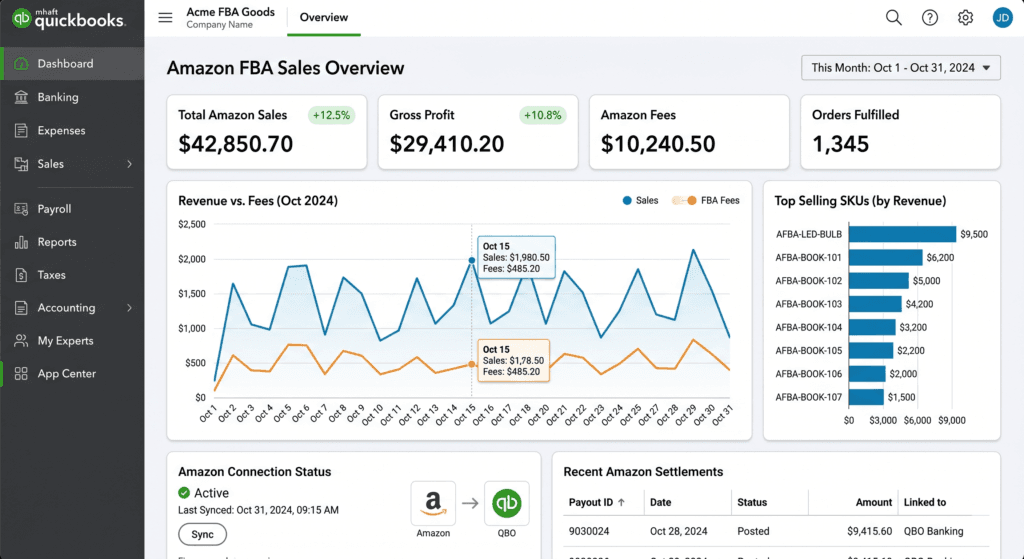
QuickBooks Online (QBO) is cloud-based accounting software used to record, organize, and report on every financial transaction in your business. Setting it up for Amazon FBA means configuring it to handle the specific income categories, expense types, inventory accounts, and tax codes that FBA sellers deal with.A generic QuickBooks setup — the kind you get if you just click through the default options — does not work well for Amazon sellers. Amazon pays you net settlements, not gross revenue. Your income has multiple components: product sales, refunds, and reimbursements. Your costs include FBA fees, inbound freight, advertising, and COGS. None of these maps to the default QuickBooks chart of accounts correctly without intentional configuration.A proper QuickBooks setup for Amazon FBA means building a chart of accounts from scratch that matches how Amazon’s financial data is structured, so every transaction lands in the right place from the moment it enters your books.Who Is This For?
This setup guide is for Amazon FBA sellers in the US and Canada who are:- Starting with QuickBooks Online for the first time
- Switching from spreadsheets or another accounting tool to QBO
- Rebuilding a poorly configured QBO file to work correctly for FBA
Why Proper QuickBooks Setup Matters for Amazon FBA Sellers
Your P&L Is Only as Good as Your Chart of Accounts
The chart of accounts is the backbone of your QuickBooks file. It defines every category that transactions can be assigned to. If your chart of accounts does not have a separate account for Amazon FBA fees, those fees will end up in a catch-all expense category. If your COGS accounts are missing, inventory costs will be expensed immediately instead of being tracked correctly against units sold.A poorly built chart of accounts produces a P&L that looks clean on the surface but misrepresents your actual profitability. The gross margin is wrong. The expense breakdown is inaccurate. The tax figures are unreliable.A2X Cannot Post Correctly to an Unconfigured File
A2X — the data connector between Amazon Seller Central and QuickBooks — maps your settlement data to specific QBO accounts. If those accounts do not exist or are incorrectly named, A2X will post to wrong or catch-all accounts. The automation that makes A2X valuable depends entirely on the QuickBooks setup being correct first.Getting QBO configured before connecting A2X means your automation works correctly from the first settlement. Getting it wrong means spending hours remapping and reposting historical data.Clean Setup Prevents Expensive Cleanup Later
Bookkeepers and accountants charge significantly more to clean up a poorly configured QuickBooks file than to maintain a correctly set-up one. Every month of messy books is another month of cleanup fees. A correct setup from the start eliminates that cost entirely.If your books are already behind or incorrectly set up, read: Amazon Catch-Up Bookkeeping: How to Fix Months of Messy Records before proceeding with a new setup.Step-by-Step: How to Set Up QuickBooks Online for Amazon FBA
Step 1: Choose the Right QuickBooks Online Plan
QuickBooks Online has three main plans for small businesses. Here is how they compare for Amazon FBA sellers:| Feature | Simple Start | Essentials | Plus |
| Income & expense tracking | Yes | Yes | Yes |
| Bank & credit card sync | Yes | Yes | Yes |
| Financial reports (P&L, Balance Sheet) | Yes | Yes | Yes |
| Max users | 1 | 3 | 5+ |
| Accounts payable | No | Yes | Yes |
| Inventory tracking | No | No | Yes |
| Class & location tracking | No | No | Yes |
| Price | ~$38/mo | ~$75/mo | ~$115/mo |
| Best for Amazon FBA | Low volume, simple books | Most FBA sellers | High-volume or multi-channel sellers |
Step 2: Set Up Your Company Profile
When you first sign in to QuickBooks Online, it will ask you to create your company profile. Enter:- Legal business name — exactly as it appears on your tax filings
- Business address — your registered business address, not Amazon’s
- Business type — choose Sole Proprietor, LLC, S-Corp, or Corporation depending on your entity type
- Industry — select Retail or E-commerce
- Fiscal year start — January for most US sellers; confirm with your accountant
- Tax form — choose based on your entity: Schedule C (sole prop), 1120-S (S-Corp), 1065 (partnership), or 1120 (C-Corp)
Step 3: Delete the Default Chart of Accounts and Build a Custom One
QuickBooks Online populates a default chart of accounts when you create a new company file. Most of these accounts are designed for general service businesses — they are not suitable for an Amazon FBA seller.The best approach is to deactivate the accounts you will not use and add the specific accounts your Amazon business needs. Do not leave unused default accounts active — they create clutter and make categorization harder.Here is the complete recommended chart of accounts for Amazon FBA sellers:| # | Account Name | Account Type | Purpose for Amazon FBA Sellers |
| 1000 | Checking Account | Bank | Primary business bank account — receives Amazon payouts |
| 1400 | Inventory Asset | Other Current Asset | Value of all unsold FBA inventory on hand |
| 2000 | Accounts Payable | Accounts Payable | Supplier invoices owed but not yet paid |
| 2100 | Sales Tax Payable (US) | Other Current Liability | US state sales tax collected and owed |
| 2110 | GST/HST Payable (Canada) | Other Current Liability | Canadian GST/HST collected and owed (if applicable) |
| 4000 | Amazon Sales — FBA | Income | Gross product sales revenue from Amazon FBA |
| 4100 | Amazon Refunds | Income | Customer refund amounts (negative income) |
| 4200 | Amazon Reimbursements | Other Income | Amazon payouts for lost or damaged FBA stock |
| 5000 | COGS: Product Cost | Cost of Goods Sold | Purchase price of units sold |
| 5010 | COGS: Inbound Shipping | Cost of Goods Sold | Freight cost to ship inventory to Amazon warehouses |
| 5020 | COGS: Prep and Packaging | Cost of Goods Sold | Poly bags, labels, inserts, and bundling costs |
| 5030 | COGS: Inventory Adjustments | Cost of Goods Sold | Write-downs for lost, damaged, or expired stock |
| 6000 | Amazon FBA Fees | Expense | Fulfillment fees, referral fees, storage charges |
| 6010 | Amazon Advertising (PPC) | Expense | Sponsored Product, Sponsored Brand, DSP ad spend |
| 6020 | Software and Tools | Expense | A2X, TaxCloud, repricing, analytics subscriptions |
| 6030 | Professional Fees | Expense | Bookkeeping, accounting, legal, and tax preparation |
| 6040 | Bank and Payment Fees | Expense | Wire transfer fees, currency conversion charges |
Step 4: Connect Your Business Bank Account
Bank feeds are one of QuickBooks Online’s most valuable features. Once connected, your bank automatically imports every transaction into QuickBooks daily, eliminating manual data entry for most non-Amazon expenses.To connect your bank:- Go to Banking > Add Account in QuickBooks
- Search for your bank by name
- Log in with your online banking credentials
- Select the account(s) to connect — typically your business checking account
- Choose the date range for the initial transaction import — 90 days is a good starting point for new setups
| Important: Do not record Amazon settlements from the bank feed as income.When Amazon’s settlement deposit appears in your bank feed, do not categorize it directly as revenue. The deposit is a net amount that already has fees deducted. Categorizing it as income will understate your gross revenue and hide your fee structure. Instead, mark it as a transfer to your Amazon Clearing account and let A2X handle the proper breakdown. More on this in Step 6. |
Step 5: Configure Tax Settings
Go to Company Settings > Taxes in QuickBooks Online and configure your tax settings:- US sellers: set up your sales tax agency for each state where you have nexus. QuickBooks can track sales tax collected by state, which feeds into your TaxCloud filing process.
- Canadian sellers: enable GST/HST under Tax Agencies. Add the CRA as your tax agency and set the rate for your business (5% GST, or the applicable HST rate for your province).
- Sellers in both markets: set up US and Canadian tax codes separately. Use the correct tax code when categorizing transactions from each market.
Step 6: Connect A2X to QuickBooks
Once your chart of accounts is built and your bank is connected, it is time to connect A2X. A2X is the data connector that pulls your Amazon settlement data and posts it as clean journal entries in QuickBooks.The A2X connection process:- Create an A2X account at a2xaccounting.com
- Connect A2X to your Amazon Seller Central account — A2X will import your settlement history
- Connect A2X to QuickBooks Online — A2X will read your chart of accounts
- Map each Amazon settlement line item to the correct QBO account from your chart
- Review your first settlement and post it to QuickBooks
- Amazon product sales -> 4000: Amazon Sales — FBA
- Customer refunds -> 4100: Amazon Refunds
- FBA fulfillment fees -> 6000: Amazon FBA Fees
- Reimbursements -> 4200: Amazon Reimbursements
- FBA storage fees -> 6000: Amazon FBA Fees (or create a separate 6005 Storage Fees account)
Step 7: Run Your First Bank Reconciliation
After A2X has posted your first settlement and your bank feed is active, run your first bank reconciliation in QuickBooks to confirm everything is matching correctly.Go to Accounting > Reconcile. Select your business checking account. Enter the closing balance from your most recent bank statement. QuickBooks will show you the transactions in its register against the statement. Match them up until the difference is zero.A clean first reconciliation confirms that:- A2X settlement entries are posting correctly and matching the Amazon deposits in your bank
- Your bank feed is importing all non-Amazon transactions
- There are no duplicate entries or missing transactions
Practical Tips for a Correct QuickBooks Setup
Complete the Chart of Accounts Before Connecting Any Integrations
Do not connect A2X or your bank account until your chart of accounts is fully built. If you connect A2X to a default QuickBooks chart of accounts, every mapping will be wrong. Remapping and reposting historical data is far more time-consuming than building the chart of accounts correctly before you start.Use a Clearing Account for Amazon Settlements
Some accountants recommend creating a dedicated clearing account — for example, 1410: Amazon Clearing — to act as a holding account for Amazon settlement deposits before A2X categorizes them. When the bank feed imports the Amazon deposit, you code it to the clearing account. When A2X posts the settlement, it also hits the clearing account. The net balance of the clearing account should always be zero, confirming that every settlement has been correctly accounted for.This approach makes reconciliation cleaner and prevents the double-recording problem described in Step 7.Set Up Separate Accounts for US and Canadian Revenue
If you sell on both Amazon.com and Amazon.ca, create separate income accounts for US and Canadian sales. For example: 4000 Amazon Sales — US FBA and 4010 Amazon Sales — Canada FBA. This makes it easy to see your revenue split by market and simplifies the process of separating US sales tax data from Canadian GST/HST data.Save Your Chart of Accounts as a Template
Once your QuickBooks chart of accounts is correctly built and confirmed as accurate after the first reconciliation, export it. Go to Accounting > Chart of Accounts > Export. Save the file as your Amazon FBA QuickBooks template. If you ever need to set up a second entity or advise a fellow seller, you have a verified starting point.Common Mistakes to Avoid
- Using the default QuickBooks chart of accounts without customizing it — this is the most common setup error and the hardest to correct retroactively
- Recording Amazon settlement deposits directly as gross revenue — the deposit is net; you lose all visibility into your fee structure
- Connecting A2X before the chart of accounts is finalized — every mapping will be wrong and will need to be redone
- Failing to connect a business bank account — without bank feeds, expense tracking is entirely manual
- Not setting up separate income accounts for refunds and reimbursements — these are not the same as product sales revenue
- Skipping the first bank reconciliation — the first reconciliation is your quality check that the whole setup is working correctly
| QuickBooks Online vs QuickBooks Desktop for Amazon FBA:This guide covers QuickBooks Online. QuickBooks Desktop is a locally-installed version that some accountants still use. For Amazon FBA sellers, QuickBooks Online is almost always the better choice: it supports real-time bank feeds, cloud access for remote bookkeepers, and direct integration with A2X. QuickBooks Desktop does not have a native A2X integration and requires more manual data management. If your accountant specifically requires Desktop, that is a valid reason to use it — otherwise, QBO is the standard for e-commerce. |
Conclusion
A correct QuickBooks setup is the foundation that everything else in your Amazon FBA accounting system depends on. The right plan, a custom chart of accounts built for FBA, connected bank feeds, correct tax settings, and A2X integration — done in order — give you an accounting system that produces accurate reports from the first month.The sellers who invest two to three hours in setting this up correctly at the beginning save hundreds of dollars annually in bookkeeping cleanup costs, file more accurate tax returns, and make better financial decisions because their numbers are trustworthy.Once the setup is complete, maintain it with a consistent monthly bookkeeping process. A two to three hour month-end close keeps your books clean, your bank accounts reconciled, and your P&L accurate all year long.
Ashfaq helps e-commerce business owners turn messy numbers into clear, reliable financials. With over 15 years of experience, he specializes in bookkeeping for Amazon and Shopify sellers, ensuring accuracy, clarity, and confident decision-making.
Want QuickBooks Online set up correctly for Amazon FBA?
Thelonex builds and manages QuickBooks for Amazon FBA sellers in the US and Canada. Fixed-price setup + ongoing bookkeeping from $199/month.
Categories
Latest Posts
- August 2, 2026
Amazon Seller Connector by QuickBooks: Complete Guide
- July 21, 2026
How COGS Accounting Works for Canadian FBA Sellers
Tags
A2X
Accounting Method
Amazon FBA
Amazon Marketplace Connector
Amazon Seller Central
Amazon Seller Connector
Bookkeeping Tips
Canada Tax Registration
Canadian Bookkeeping
Canadian Sales Tax
Chart of Accounts
COGS
E-Commerce
E-Commerce Bookkeeping
Finance
Financial Statements
GST/HST
Inventory
Payout Reconciliation
Profit and Loss
QuickBooks Online
Sales Tax
Sales Tax Compliance
Shopify
TaxCloud